Bitfocus Companion Setup Guide
Use an Elgato Stream Deck button in Bitfocus Companion to trigger a GremlinEx (GEX) mapping. Companion reads the key press and release, sends them over UDP, and the GEX OSC device runs the mapping for the received address. The example below uses the Gear button on the saved Star Citizen SC_SD page and the matching SC Ex GEX profile.
Connect the Stream Deck to Companion
- Connect the Stream Deck over USB and launch Companion. Open its web admin from the Companion launcher. The example installation uses
http://127.0.0.1:8010. - For direct USB control, exit the Elgato Stream Deck app. In Companion, open Surfaces, enable the Elgato Stream Deck surface integration if needed, and use Rescan USB if your deck is missing. Companion Surfaces
- In the deck’s surface settings, turn off Use Last Page At Startup and select the desired Startup Page. Choose SC_SD if you are using the example layout. If the Elgato app needs to stay open, install the Bitfocus Companion plugin from the Elgato store, enable its surface integration in Companion, and assign its button actions to physical keys in the Elgato app. Companion setup for Elgato
Connect Companion to the GEX OSC listener
- In GEX, open Options → Modules, enable OSC, and restart GEX if you changed the setting.
- Open Options → OSC/MIDI. Check Enable OSC, then note the GremlinEx IP and Input port. The example uses
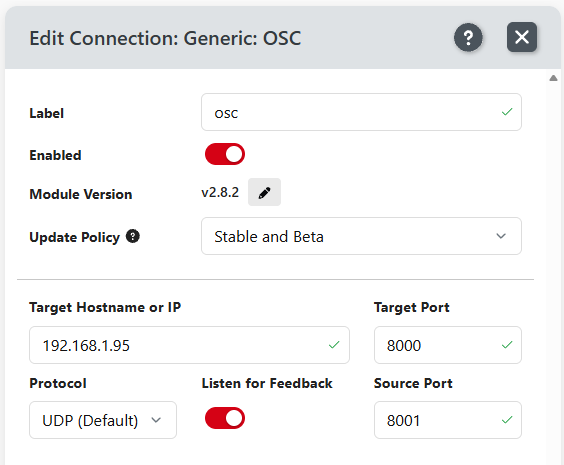
192.168.1.95and UDP port8000. Use the address displayed on your machine. - In Companion, open Connections, add Generic: OSC, and name the connection
osc. Select UDP and enter the GEX listener values in Target Hostname or IP and Target Port. If both apps run on the same PC, match the address GEX actually listens on. Use127.0.0.1only if GEX is listening on loopback. Save the connection. Bitfocus Generic OSC connection
The example also receives return messages on Companion UDP port 8001. To reproduce that part of the setup, enable Listen for Feedback and set Source Port to 8001. Companion’s web admin uses a separate TCP port.
Set up the Gear button
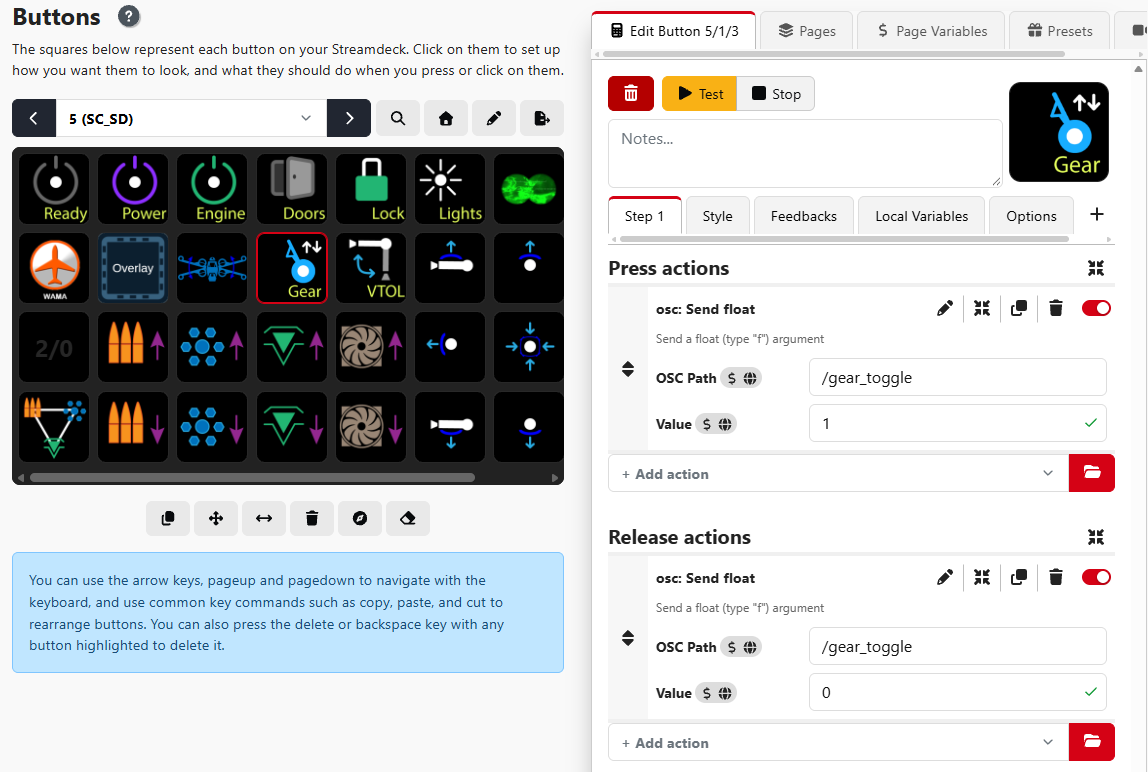
- In Companion, open Buttons and choose SC_SD. The saved gear button is at row
1, column3in Companion’s zero-based grid. To make your own, select an empty position, create a Regular button, and label it Gear. - Under Press actions, add Send float from the
oscconnection. Set the OSC path to/gear_toggleand the value to1.0. - Under Release actions, add a second Send float action with the same path and value
0.0. Each physical press and release now sends one message. Companion button actions
| Stream Deck event | OSC path | Float value |
|---|---|---|
| Press | /gear_toggle |
1.0 |
| Release | /gear_toggle |
0.0 |
Map the OSC input in GEX
- With the profile stopped, select Default mode and open the OSC tab. Use the existing
/gear_toggleinput in SC Ex. To recreate it, click Add and enter/gear_togglein Cmd. You can also click Listen for input and press the Stream Deck key to capture the message. - Choose Message only and Button, and use the first argument. Leave Trigger on message off so Companion’s
0.0releases the input. - Add a Basic container and Map to Keyboard/Mouse Ex. Set the key to N, choose Pulse with a 125 ms duration, and enable execution on press only. If you changed the Star Citizen landing gear binding, use your own key or chord. Map to Keyboard/Mouse Ex User Guide
- Save and activate the profile. With Star Citizen focused, press and release the Stream Deck key. The press sends a single key pulse and the release resets the OSC input for the next press.
Check where a signal stops
| What you see | What to check |
|---|---|
| The physical key is blank or shows a different action | Check that the deck appears as a Companion surface and is displaying the page with your Gear button. Open Companion’s Emulator to test the same page without the hardware. |
| GEX’s Listen for input captures nothing | Check Companion’s target IP, UDP port, and osc connection. Compare them with the address shown in the GEX listener. For a second computer, allow inbound UDP on the GEX machine’s private network. |
| The button presses but never releases | Check that Release actions sends float 0.0 on the same address as the press. |
| GEX sees both values but the game does nothing | Check that the profile is active in the mapped mode and that the key or chord matches the in-game binding. |
For faders, additional SC Ex mappings, and the /switch_sc message sent back to Companion on profile start, see the OSC Device User Guide.